
All your databases.
One Windows app.
Browse tables, fix a row, write a query and turn the answer into a chart, without switching tools. Setu works with PostgreSQL, MySQL, SQL Server, Oracle, MongoDB, Snowflake and 11 more, and your passwords never leave your computer.
How to install or get the portable zip
Works with 17 databases
Relational
PostgreSQL, MySQL, SQL Server, Oracle, SQLite, MariaDB, CockroachDB, TiDB, openGauss
Warehouses and analytics
Snowflake, BigQuery, Redshift, ClickHouse, DuckDB, Doris, StarRocks
Documents
MongoDB, with familiar db.orders.find() commands
Connect directly, over SSL, or through an SSH tunnel. Sign in with Microsoft Entra for Azure SQL, or IAM for Amazon RDS.
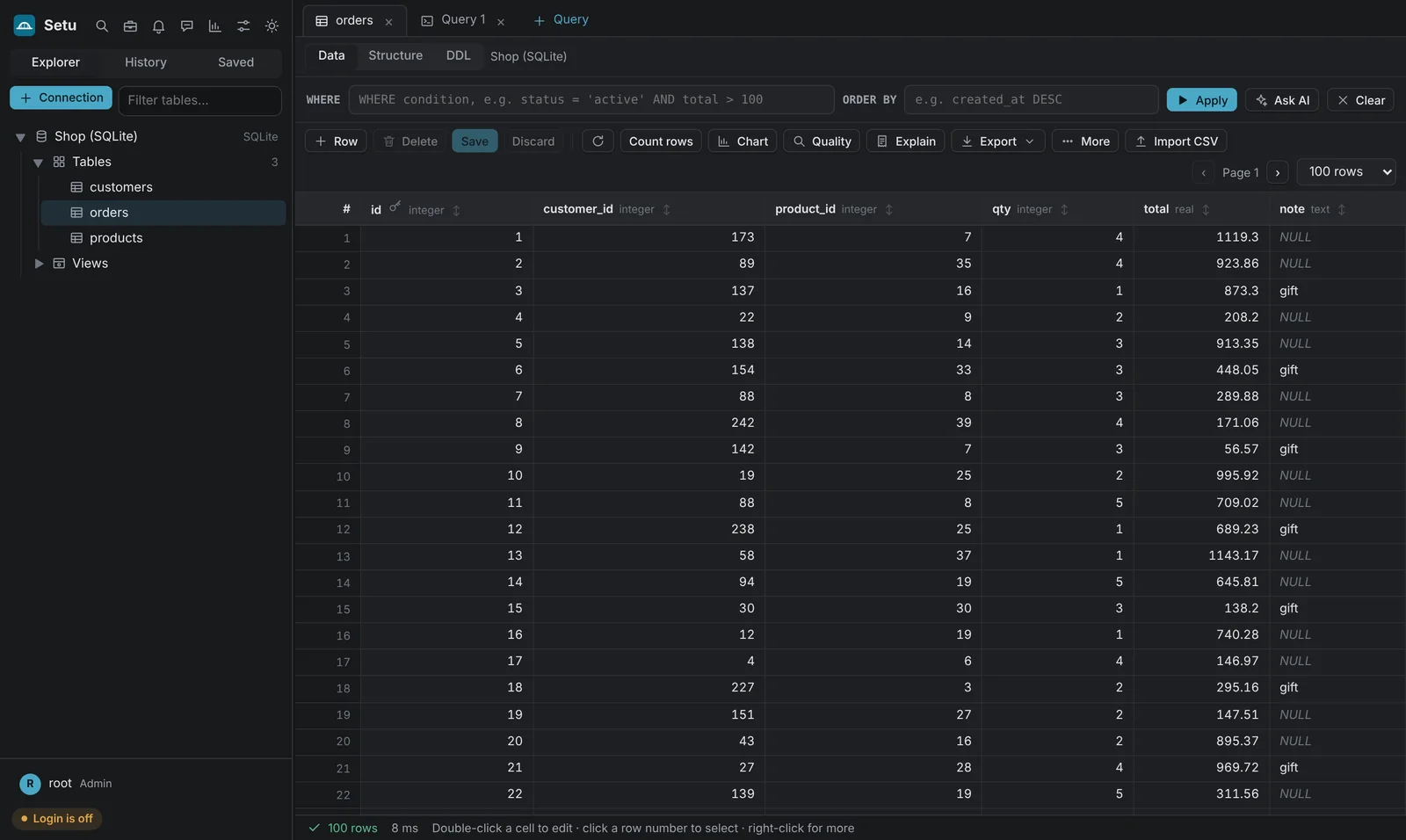
Look around without writing SQL
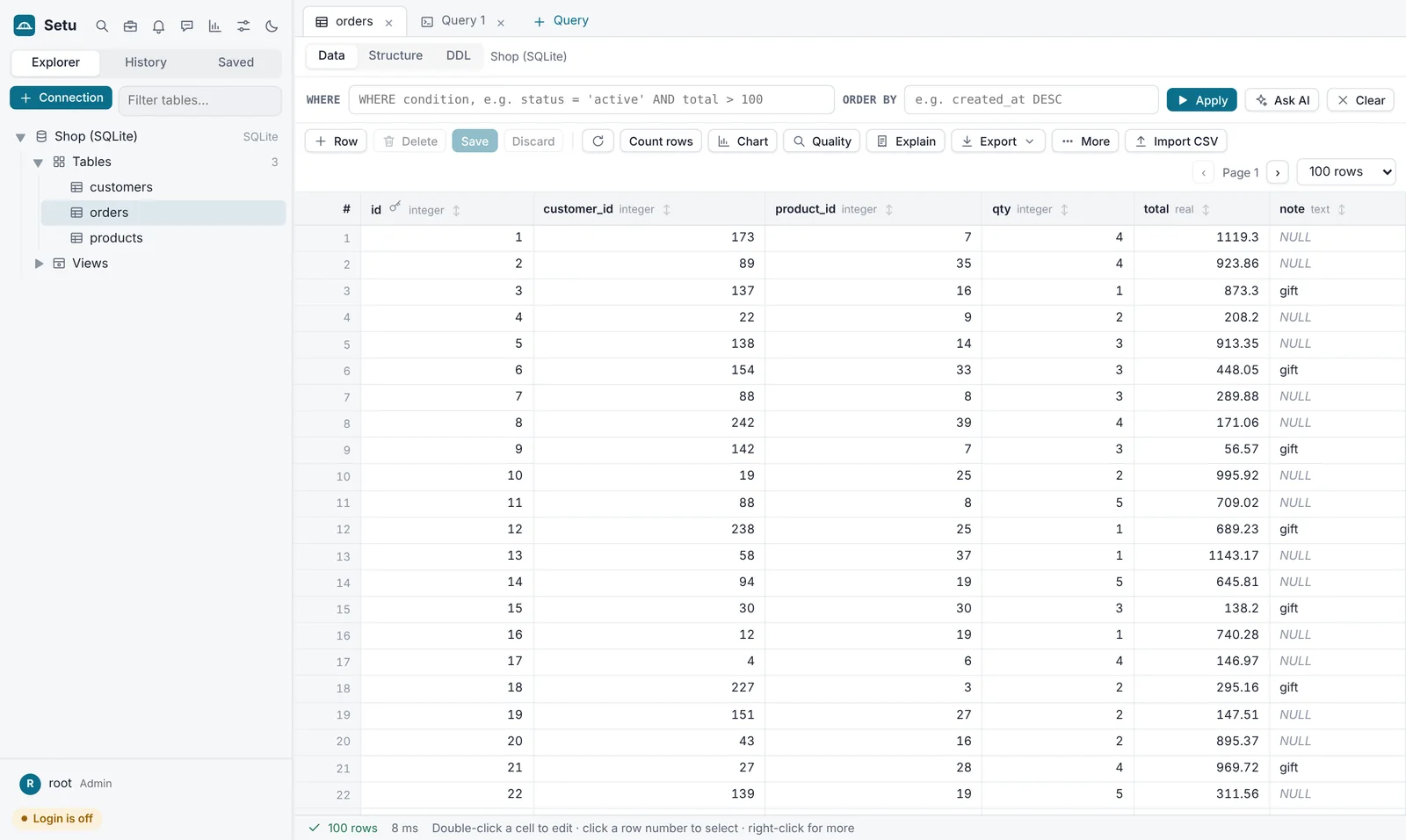
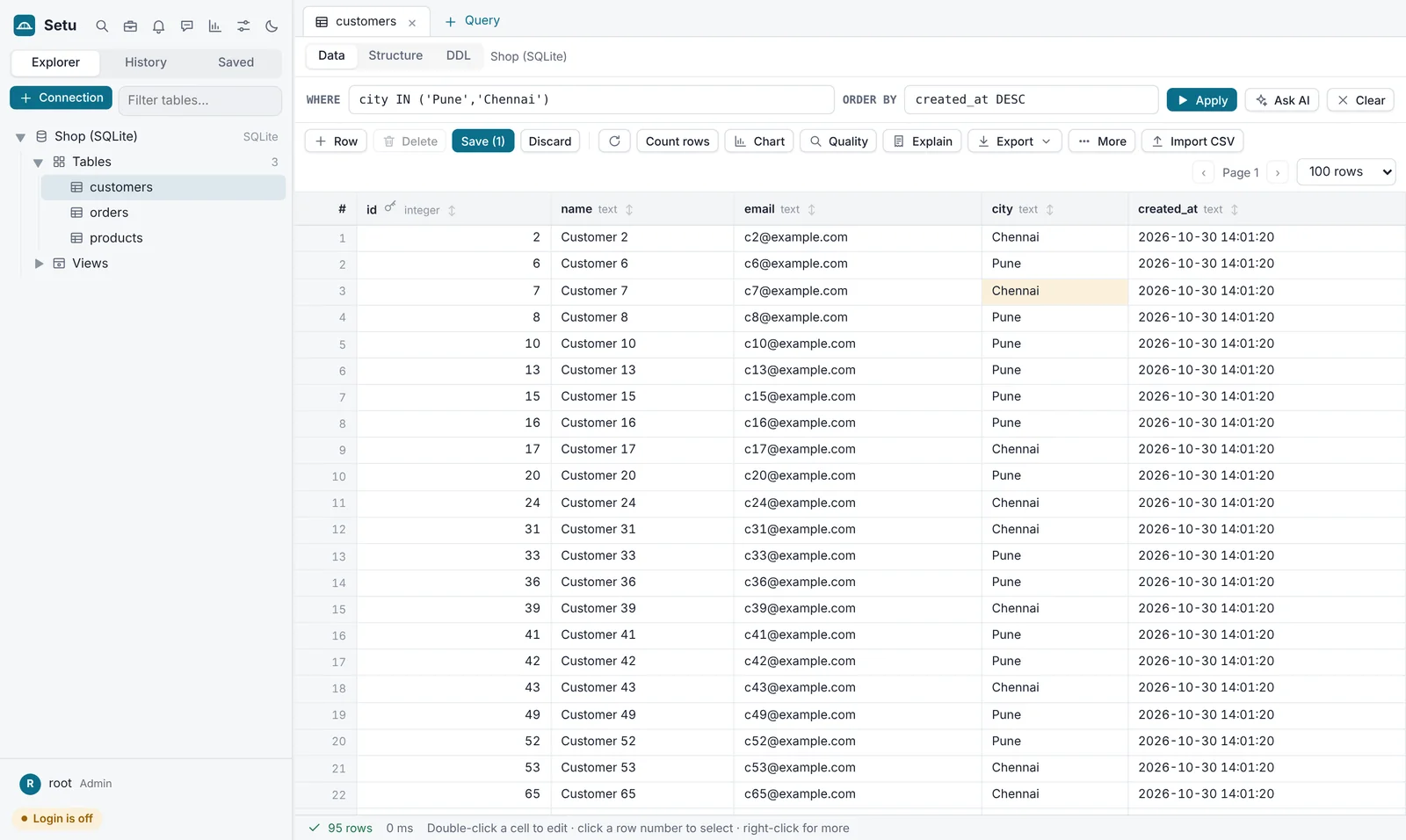
Open any table and read it like a spreadsheet. Filter with a simple condition, sort, page through millions of rows, and change a value by double-clicking it. Nothing is written until you press Save.
- Edit, add and delete rows with a clear Save or Discard
- Import CSV and Excel files, export to CSV, JSON or SQL inserts
- See structure, keys and an entity diagram for any schema
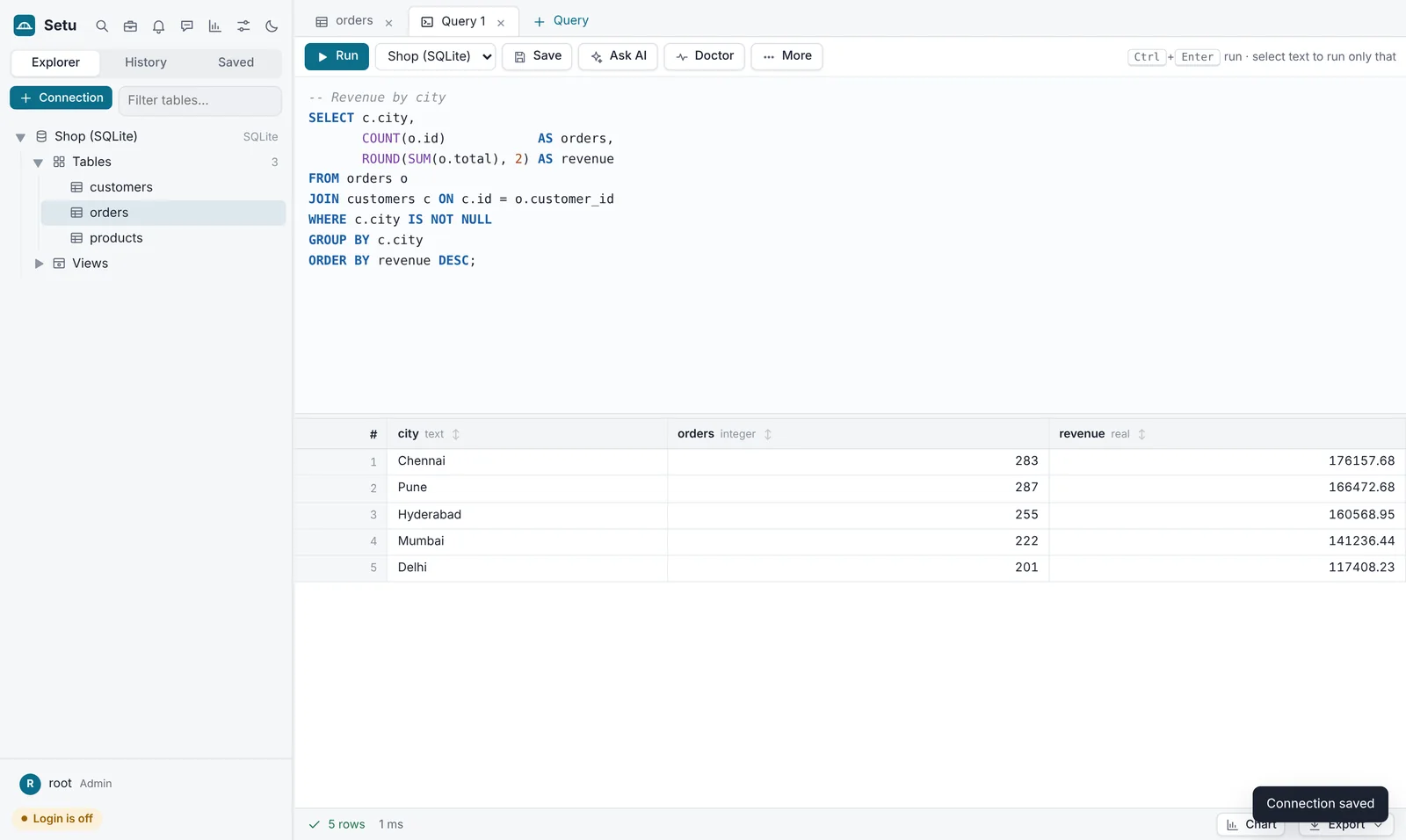
Write a query, see the answer as a chart
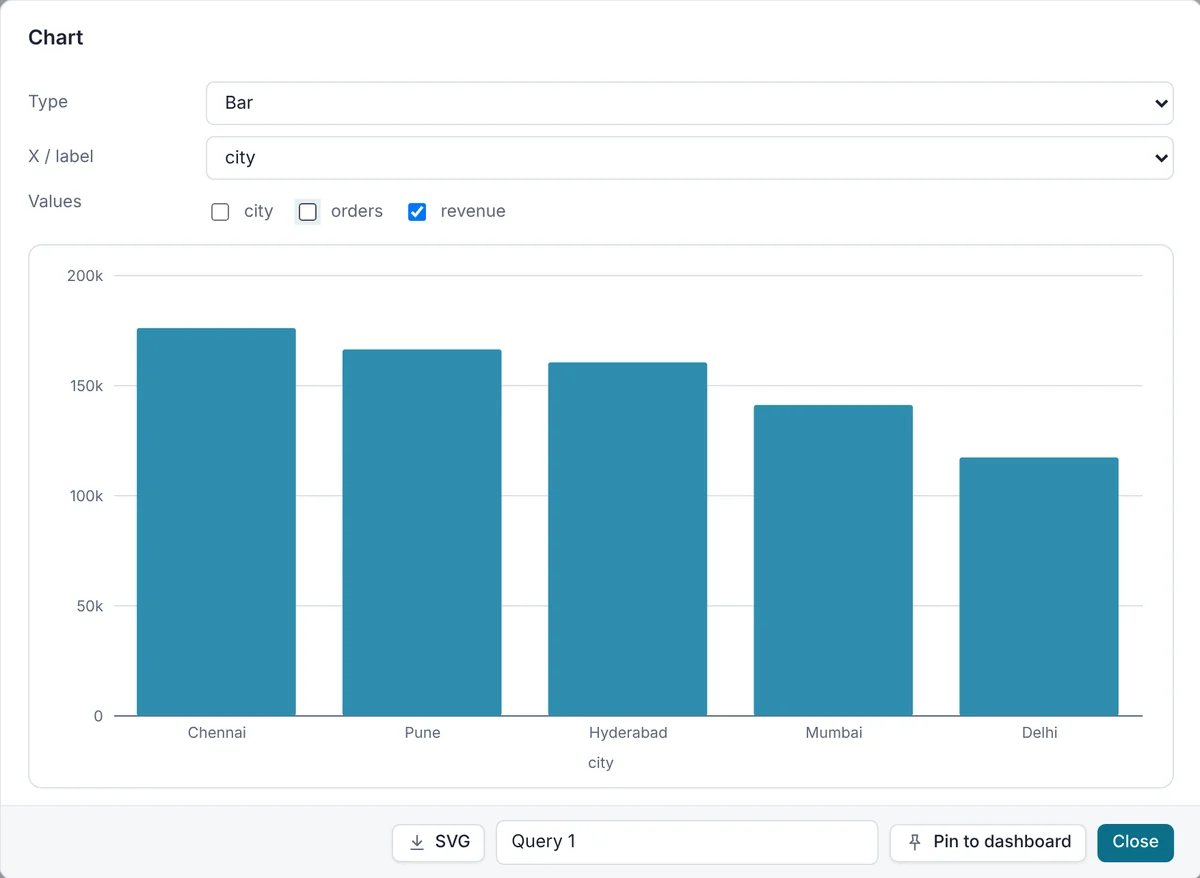
The editor colours your SQL, completes table and column names, and runs with Ctrl+Enter. One click turns the result into a bar, line or pie chart that you can pin to a dashboard or send as a report.
- Doctor explains slow queries and suggests fixes
- Visual query builder and pivot tables for people who prefer clicking
- Query across two databases at once and compare the results
Ask in plain English
Type “top ten customers by revenue this year” and Setu writes the SQL, shows it to you, and runs it only when you say so. Use your own key for Claude or any OpenAI-compatible service, or a local model through Ollama so nothing leaves your computer.
Keep work running on its own
Schedule reports by email, get an alert in Slack or Teams when a number crosses a line, copy data between databases on a timetable, and run data-quality checks that tell you when something looks wrong.
And the tools you reach for once a week
- Schema compare
- See what differs between two databases and get the script to fix it.
- Data diff
- Row-by-row differences between two tables.
- Copy table
- Move a table and its data from one database to another.
- Mock data
- Fill a test table with realistic rows.
- Snapshots
- Save a table’s rows before a risky change and restore them later.
- Notebooks
- Mix notes, queries and charts on one page.
- Dashboards
- Pin charts, add filters, save a snapshot page to share.
- Migrations
- Numbered schema changes, applied in order, with a record of what ran.
- Glossary and lineage
- Explain what columns mean and see where data comes from.
- Published APIs
- Turn a saved query into a small web endpoint, with an optional key.
- Version history
- Every saved query, report and dashboard keeps its last 25 versions.
- Sync and backup
- Keep your saved work the same on two PCs through a shared folder.
Careful with your data by design
Setu is a desktop app, not a website. Your connections and results stay on your PC, and it works the same with no internet beyond the databases you connect to.
Passwords locked to your Windows account
Saved passwords and keys are encrypted with AES-256, using a key protected by Windows itself.
Safe mode for production
Mark a connection as production and Setu blocks changes, or asks for a second person’s approval first.
Users, roles and an audit trail
Turn on sign-in, give people read-only or editor access, hide sensitive columns, and see who ran what.
No account, no tracking
You don’t sign up, and Setu sends no usage data anywhere. It keeps a daily backup of your saved work on your own disk.
Install in a minute
- Download Setu-Setup-1.0.0.exe from the button at the top of this page.
- Open it This first release is not code-signed yet, so Windows may show “Windows protected your PC”. Choose More info, then Run anyway. No administrator rights are needed.
- Connect Setu opens in its own window. Pick your database type, enter the host and password, and press Test.
Check the file
To confirm your download is exactly the file we published, run this in PowerShell in your Downloads folder and compare the result.
Get-FileHash .\Setu-Setup-1.0.0.exeSHA-256
B56FEEEE7931A4F985BCCA6E06CBA0DBCB70EA36E7368670BA3F4E061F334CEFFree for 14 days. Then a licence.
Every feature is open during the trial, with no card and no sign-up. After that, Setu needs a licence key. Prices depend on how many people will use it, so write to us and we’ll reply with a quote.
Questions
Does Setu work on Mac or Linux?
Not yet. Setu 1.0 is for Windows 10 and 11 (64-bit).
Does it need the internet?
Only to reach the databases you connect to, and the AI service if you choose to use one. Setu itself has no online account.
Where is my data kept?
In a folder called .setu inside your Windows user folder: your connections, saved queries, reports and settings, plus a daily backup. Uninstalling Setu leaves it in place.
Is anything sent to an AI company?
Only if you turn on the AI features and add your own key. Setu then sends your table structure and your question to the provider you picked. With a local model through Ollama, nothing leaves your computer.
How do I update?
Download the new installer and run it. It replaces the app and keeps all your connections and saved work.
What happens when the trial ends?
Setu asks for a licence key before you can keep working. Your saved work stays on your PC and comes back as soon as you enter a key.
How do I uninstall?
Settings, then Apps, then Installed apps. Find Setu and choose Uninstall.